


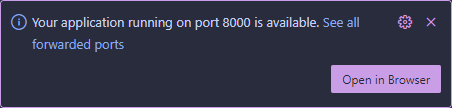
Open the web servers you run in the workspace from your browser, through the workspace's own address. Ports opened inside the container are not reachable from outside it by default, because of Docker's network isolation. The workspace detects them and makes them reachable through its built-in proxy, and a notification in the bottom-right corner links to each published service.
Both access methods sit behind the workspace login: a forwarded port requires the same sign-in as the editor, and the workspace's own session cookies are removed before a request reaches your app. The one exception is a port you make public on its subdomain.
Subpath access is enabled by default: every published port is available at /proxy/<port>/.
For example, if your Kloud Workspace is published at 127.0.0.1:8080 and you run pyserver in the terminal (the oh-my-zsh python plugin's alias for python3 -m http.server, on port 8000), you can access the server at http://127.0.0.1:8080/proxy/8000/.
Set the domain (and subdomain) structure with this variable:
WS_SERVER_PROXY_DOMAIN: Domain suffix used to expose server's forwarded ports.docker run \
-e WS_SERVER_PROXY_DOMAIN=ws.example.com \
ghcr.io/kloudkit/workspace:v0.6.0In the configuration above, if your Kloud Workspace is hosted at ws.example.com and you run pyserver (port 8000), you can access the server at 8000.ws.example.com. This assumes the workspace answers on port 80 or 443; otherwise add its port (8000.ws.example.com:8080).
Subdomain access needs a DNS entry for each port you want to access, or one wildcard entry (*.<domain>) that covers all ports. If adding DNS entries is not possible, use the local DNS workaround on your own machine.
A leading *. is ignored, so WS_SERVER_PROXY_DOMAIN=*.ws.example.com behaves the same as ws.example.com.
You can provide multiple proxy domains by passing a space-delimited list:
docker run \
  -e WS_SERVER_PROXY_DOMAIN="ws.example.com local.ws.example.com" \
  ghcr.io/kloudkit/workspace:v0.6.0
With the configuration above, services are available on both domains: *.ws.example.com and *.local.ws.example.com.
ℹ️ INFO
Each domain is prefixed with {{port}}. by default. To place the port elsewhere, include a {{port}} placeholder in the domain:
docker run \
  -e WS_SERVER_PROXY_DOMAIN="{{port}}-project.ws.example.com ws.example.com" \
  ghcr.io/kloudkit/workspace:v0.6.0
With the configuration above, port 8000 is available at both 8000-project.ws.example.com and 8000.ws.example.com.
⚠️ WARNING
Configure the reverse proxy to forward the host header, or subdomain access does not work.
Make a port public to show a page, a container or a dev server to someone without a workspace account. A public port answers on its subdomain without the sign-in for as long as you keep it public.
Allow public ports and set a proxy domain:
WS_SERVER_PROXY_ALLOW_PUBLIC: Allows forwarded ports to be shared without sign-in.WS_SERVER_PROXY_DOMAIN: Domain suffix used to expose server's forwarded ports.docker run \
-e WS_SERVER_PROXY_ALLOW_PUBLIC=true \
-e WS_SERVER_PROXY_DOMAIN=ws.example.com \
ghcr.io/kloudkit/workspace:v0.6.0Then share the port from the terminal:
ws-cli port share 8000The command prints the public URLs (https://8000.ws.example.com) and keeps the port public while it runs. Press Ctrl+C to make the port private again, or run ws-cli port unshare 8000 from any terminal.
To serve the current folder and share it in one step, run ws-cli serve current --share. While it is shared, dotfiles, folders without an index.html and links that leave the folder answer 404.
In the editor, right-click a port in the Ports view and pick Port Visibility > Public. A port you make public there stays public until you set it back to Private, close the port or run ws-cli port unshare. Closing the editor window does not end it at once: the port stays public for up to 3 hours, or about 5 minutes after you open the editor again. The Ports view and ws-cli share one list: each shows every public port and can make any of them private.
ws-cli port list shows the listening ports, which are public, their URLs and their state in the Ports view. ws-cli port clear closes the ports in the Ports view whose process has exited.
Every port is private again when the workspace restarts. The workspace never shares its own port, and public ports log each change in the workspace logs. If sign-in is off, every port is already open, and ws-cli port share says so.
Only Subdomains Can Be Public
/proxy/<port>/ and /absproxy/<port>/ always need the sign-in. A page served on a subpath runs on the editor's own origin, so a visitor's page could act on the editor as you. Share a port on its subdomain instead, where it runs on an origin of its own.
If you cannot modify a DNS server, define hostname-to-IP mappings on your local machine in /etc/hosts on Linux or C:\Windows\System32\drivers\etc\hosts on Windows. This method is useful for testing or development environments.
⚠️ WARNING
This configuration only affects your local machine and does not impact external DNS servers.
Avoid using this method in production environments.
To map a domain name to your local machine (IP: 127.0.0.1):
Open /etc/hosts for editing.
Add a new entry at the end of the file. For example, for subdomain access to port 8000:
127.0.0.1 8000.ws.testIf you use multiple domains, add one line per domain:
127.0.0.1    8000.ws.test
127.0.0.1    8000.local.ws.test
Verify the configuration by running ping 8000.ws.test in the terminal. The output should show the IP 127.0.0.1.
💡 TIP
Avoid TLDs like .dev or .new, as they require an SSL certificate.
Two limits apply to this workaround:
/etc/hosts does not support wildcard records (such as *.ws.test). Repeat the process for each port you intend to expose./etc/hosts maps names to IPs only, not ports. If Kloud Workspace is published on a port other than 80 or 443, include it in the URL (e.g., 8000.ws.test:8080).